My developer workflow using WSL, tmux, and VSCode
· 7 min read
On this page
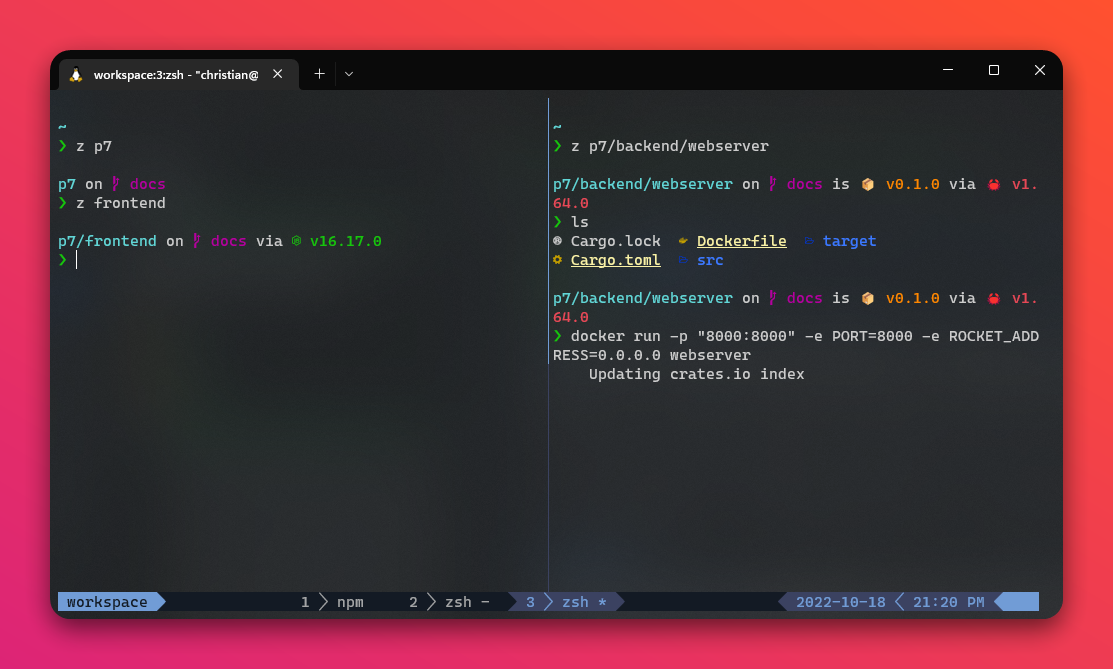
WSL (opens in a new tab) has made development on Windows machines much better.
Especially with the release of WSL 2 it is now easier and faster than ever.
This post documents my workflows and tools for software development on Windows.
I will update it whenever I find a better way to do something.
I use the Ubuntu distribution for WSL. This is also the OS I use (or derivations thereof: PopOS) when I’m on Linux.
For configuration of the mentioned tools, look at my dotfiles (opens in a new tab).
Love finding new tools? Check out my tool stack!
Terminal
Windows Terminal (opens in a new tab) is a non-negotiable for me. I have not found a better terminal emulator for Windows.
It has tabs, great customizability, and it’s pretty powerful.
Recently, I have been exploring Warp Terminal (opens in a new tab). You have to run it through WSL (currently: no Windows build), which isn’t as nice as running it natively.
It’s a great terminal emulator and has a lot of features that makes the experience more powerful and enjoyable.
I could point to individual features, but what makes Warp great is how all features combined makes it feel. It’s just good.
I use a Nerd Font (opens in a new tab) called Caskaydia Cove Mono in the terminal.
I switch between the Campbell and One Half Dark themes.
Shell
I use Z Shell, aka. zsh.
Managing zsh can get kind of trivial, so like Oh My Zsh (opens in a new tab) has been essential to my workflow.
It makes configuration (opens in a new tab) and plugin management easy.
Prompt
I was a huge fan of Powerlevel10k for Zsh, but moved to Starship (opens in a new tab) because it has a clean and minimal default look.
Starship is very easy to set up and provides a nice developer experience in my opinion.
CLI tools
I use an array of CLI tools to make me more effective. Here’s a rapid-fire list:
- Lazygit (opens in a new tab) for accelerated git workflow
- git-delta (opens in a new tab) for nicer git diffs in lazygit. Also check out difftastic (opens in a new tab)
- cz-cli (commitizen) (opens in a new tab) to use when creating conventional commits (opens in a new tab). Very helpful when using semantic-release (opens in a new tab). Great CI solution when working on NPM packages or Obsidian (opens in a new tab) plugins
- Eza (opens in a new tab) as a better
lsreplacement - gh (GitHub CLI) (opens in a new tab) for faster GitHub workflow
- tmux (opens in a new tab) for awesome multi-tasking in the terminal, or the Rust-based zellij (opens in a new tab)
- nvm (opens in a new tab) to manage node versions
- Multiple Zsh plugins (see below)
- Lazydocker (opens in a new tab) for accelerated docker workflow
- Brew (opens in a new tab) for package management
- Act (opens in a new tab) for running GitHub Actions locally. Save yourself the painful embarrasment of pushing ** commits and waiting for CI to fail while you’re figuring out how to do X and Y in your CI
- Ni (opens in a new tab) so I don’t have to care whether I’m in a Yarn / NPM / pnpm project
- btop (opens in a new tab) as a better top
- Rye (opens in a new tab) as a project and package manager for Python. If you use Python, this is a must have. Use with uv (opens in a new tab) and ruff (opens in a new tab)
- Tectonic (opens in a new tab) for typesetting. Stop bothering with LaTeX build tools…
- Zoxide (opens in a new tab) as a faster way to navigate directories
- bat (opens in a new tab) as a better cat
- ripgrep (opens in a new tab) as a faster grep
- fd (opens in a new tab) as a faster find
- fzf (opens in a new tab) as a fuzzy finder
- csvlens (opens in a new tab) to work with CSVs (also see visidata (opens in a new tab))
- Topgrade-rs (opens in a new tab) to upgrade all the things
Lazygit
This is my favorite way of interacting with git. My git capabilities and speed has probably 10x’ed after I started using it.
I have configured my Lazygit to work with git-delta (opens in a new tab) and commitizen (opens in a new tab).
Jesse Duffield, the creator of Lazygit, made a great video showcasing 15 features in 15 minutes (opens in a new tab). I highly recommend that you watch it to see how it might accelerate your workflow.
I even made a tool called bunnai (opens in a new tab) for having ai write commit messages for me in lazygit. It’s been very useful!
Git-delta is a great tool for visualizing changes.
Commitizen helps me write conventional commits (opens in a new tab), which is makes it easier to manage versions with semantic release (opens in a new tab) when creating either node packages, Obsidian plugins, and other software where it makes sense to use that kind of versioning.
- Install Lazygit: GitHub - jesseduffield/lazygit: simple terminal UI for git commands (opens in a new tab)
- Install git-delta: Use cargo (opens in a new tab) and do
cargo install git-delta. - Install commitizen: Use a node version manager to install node and do
npm install -g commitizen.
Eza
Great replacement for ls.
I use a few aliases here:
alias ls="eza --icons --git"
alias l='eza -alg --color=always --group-directories-first --git'
alias ll='eza -aliSgh --color=always --group-directories-first --icons --header --long --git'
alias lt='eza -@alT --color=always --git'
alias llt="eza --oneline --tree --icons --git-ignore"
alias lr='eza -alg --sort=modified --color=always --group-directories-first --git'
To install, use cargo (opens in a new tab) and do cargo install eza.
GitHub CLI
I mainly use this to create and configure repos.
Often also do gh repo view --web to open the repo in my browser.
gh repo createto create a new repo.--privateto make it private.gh repo view --webto open the repo in the browser.gh repo clone <repo>to clone a repo, e.g.gh repo clone chhoumann/dotfiles. No need to prepend your own username to the repo name (given you own the repo).gh pr merge -dto merge the PR for the branch you are in and delete the branch.
One of my most time-saving combinations comes into play when I’m initializing a new repository.
# Make project folder and cd in
mkdir project1 && cd project1
# Initialize new git repository
git init

# Many project-starters like `npx create-next-app@latest` will create a folder for you
# And sometimes even init a git repo. That's why the command below is great.

# Create a new GitHub repository and push local repo up
gh repo create project1 --private --source=. --remote=upstream

# Alternatively, if you just want gh to create an empty repo and clone it to a folder:
gh repo create project1 --private --clone
Tmux
I’m still learning tmux, but even the basics have accelerated my workflow.
Creating and killing panes, splitting panes, and switching between them is very fast and easy.
This seriously helps when, e.g. you are running npm run dev in one pane, but need to commit something.
You don’t want to stop the dev server, so you just split the pane and commit in the new pane.
nvm
I basically just do nvm alias default lts/gallium (current LTS version). This sets the default node version.
nvm use --lts or nvm install --lts is very helpful.
Sometimes you want to play around with other versions (e.g. latest or previous), so it helps with that as well.
Zsh plugins
I’m using the following plugins:
- git (opens in a new tab) adds nice git aliases, but I prefer Lazygit now
- zsh-z (opens in a new tab) so you can jump around directories much faster
- gh (opens in a new tab) adds completion for the gh cli
- rust (opens in a new tab) adds completion for the rust compiler, rustup, and cargo
- zsh-autosuggestions (opens in a new tab) adds autosuggestions
- tmux (opens in a new tab) adds QoL features for using zsh & tmux together.
If you choose nothing else, I highly recommend zsh-z. It’s a game changer.
You can CD into a directory from anywhere by just writing part of it.
For example, z dot takes me to my dotfiles folder, no matter where I am.
It learns from your usage, so it gets better over time.
Editor
I have been using Visual Studio Code (opens in a new tab) as my editor for a long time.
Recently, I have been moving towards using Cursor (opens in a new tab), which is VSCode, but completely integrated with AI. Given how much LLMs empower my workflows, this has been a great change. No switching to ChatGPT to ask questions and then back to VSCode. Just ask directly in Cursor. Copilot++ in Cursor is fantastic as well.
I’ve dabbled in Neovim (opens in a new tab), but decided I’d rather spend my time doing other things than tweaking my Neovim config.
I have a tendency to fall into rabbit holes, especially ones that look like shiny new tools.
Using VS Code is a good way to get a lot of functionality without having to spend a lot of time configuring it.
This also makes setup much easier when switching computers.
I do have some settings and keybindings that I prefer. You can find those in my dotfiles (opens in a new tab).
Extensions
I use the following extensions:
- Vim (opens in a new tab), because I find it greatly improves my efficiency.
- Error Lens (opens in a new tab), because it makes it easier to spot errors. Can lead to clutter, though.
- GitHub Copilot (opens in a new tab) is a serious productivity game-changer, especially when using frameworks or languages you aren’t used to.
- Tailwind CSS Intellisense (opens in a new tab) is great for working with Tailwind CSS.
- Import Cost (opens in a new tab) is great for spotting when you are importing too much.
- ESLint (opens in a new tab) in combination with…
- Prettier (opens in a new tab) for formatting.
- ES7+ React/Redux/GraphQL/React-Native snippets (opens in a new tab), mostly for React snippets.
- vscode-icons (opens in a new tab) for nice icons.
- WSL (opens in a new tab) for working in VS Code through WSL.
- GitHub Pull Requests and Issues (opens in a new tab) for working with GitHub PRs and issues. Great in combination with the
ghCLI tool.
And language specific extensions for the languages I use.
I use GitHub Dark (opens in a new tab) as my primary theme. I’ve also taken a liking to poimandres (opens in a new tab) and poimandres-alternate (opens in a new tab).